What Happens to Your Schedule When One Task Slips
A project schedule earns its keep the day something changes. Anyone can draw a plan that looks right on day one. The useful question is what the plan tells you when one task goes wrong. Below is a before and after on a real plan, with every date taken from the screen.
The plan is a small office relocation: four phases, three owners, a finish date of Friday 6 November. This is how it looks to start with.
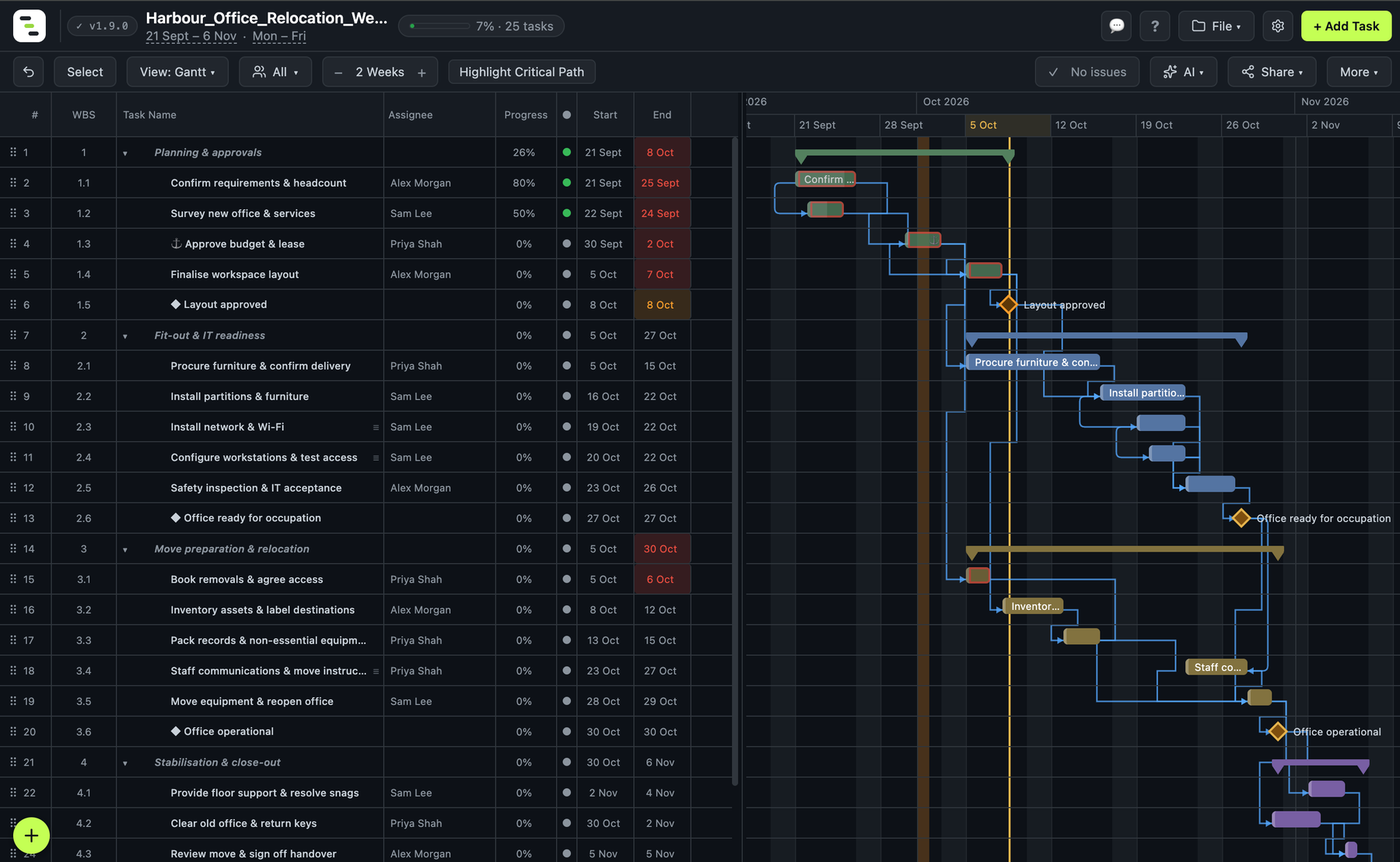
Now one thing changes. The budget and lease approval (task 1.3) is pushed back: it now starts on Friday 2 October instead of Wednesday 30 September. That is the only change made upstream; every other date below it was left to the schedule.
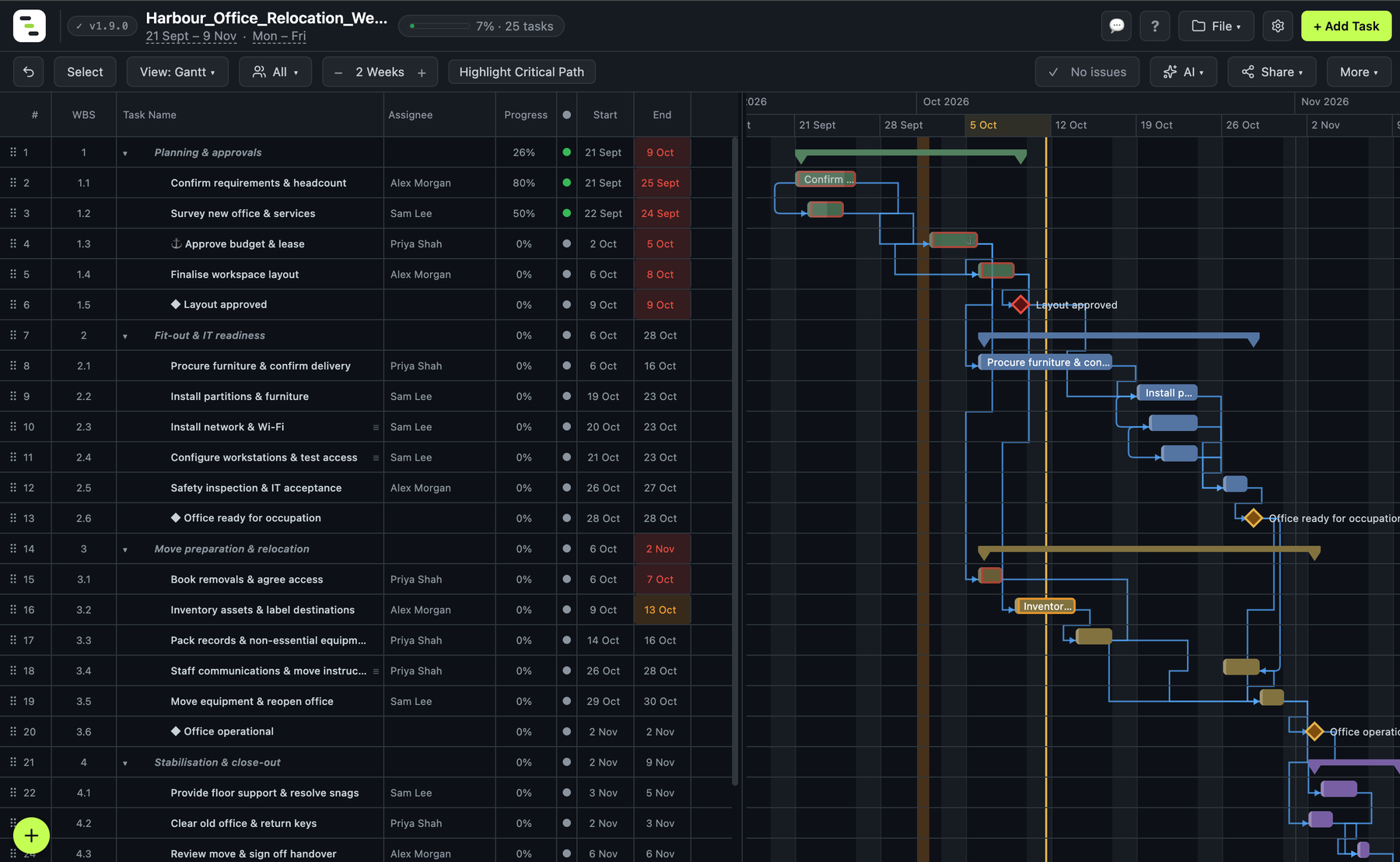
Every date that moved
Here is every row visible in the two screenshots, compared line by line. Only the first two tasks stayed put.
| Row | Before | After |
|---|---|---|
| 1 Planning & approvals (phase) | 21 Sept to 8 Oct | 21 Sept to 9 Oct |
| 1.1 Confirm requirements & headcount | 21 to 25 Sept | No change |
| 1.2 Survey new office & services | 22 to 24 Sept | No change |
| 1.3 Approve budget & lease | 30 Sept to 2 Oct | 2 to 5 Oct |
| 1.4 Finalise workspace layout | 5 to 7 Oct | 6 to 8 Oct |
| 1.5 Layout approved (milestone) | 8 Oct | 9 Oct |
| 2 Fit-out & IT readiness (phase) | 5 to 27 Oct | 6 to 28 Oct |
| 2.1 Procure furniture & confirm delivery | 5 to 15 Oct | 6 to 16 Oct |
| 2.2 Install partitions & furniture | 16 to 22 Oct | 19 to 23 Oct |
| 2.3 Install network & Wi-Fi | 19 to 22 Oct | 20 to 23 Oct |
| 2.4 Configure workstations & test access | 20 to 22 Oct | 21 to 23 Oct |
| 2.5 Safety inspection & IT acceptance | 23 to 26 Oct | 26 to 27 Oct |
| 2.6 Office ready for occupation (milestone) | 27 Oct | 28 Oct |
| 3 Move preparation & relocation (phase) | 5 to 30 Oct | 6 Oct to 2 Nov |
| 3.1 Book removals & agree access | 5 to 6 Oct | 6 to 7 Oct |
| 3.2 Inventory assets & label destinations | 8 to 12 Oct | 9 to 13 Oct |
| 3.3 Pack records & non-essential equipment | 13 to 15 Oct | 14 to 16 Oct |
| 3.4 Staff communications & move instructions | 23 to 27 Oct | 26 to 28 Oct |
| 3.5 Move equipment & reopen office | 28 to 29 Oct | 29 to 30 Oct |
| 3.6 Office operational (milestone) | 30 Oct | 2 Nov |
| 4 Stabilisation & close-out (phase) | 30 Oct to 6 Nov | 2 to 9 Nov |
| 4.1 Provide floor support & resolve snags | 2 to 4 Nov | 3 to 5 Nov |
| 4.2 Clear old office & return keys | 30 Oct to 2 Nov | 2 to 3 Nov |
| 4.3 Review move & sign off handover | 5 Nov | 6 Nov |
Every row from 1.4 down moved by exactly one working day, and nobody retyped any of them. The plan header, which showed 21 Sept to 6 Nov before, now shows 21 Sept to 9 Nov. The rows below 4.3 are off the bottom of the screenshots.
Two details are worth reading closely:
- The trigger itself crosses a weekend. Approve budget & lease now ends on Monday 5 October instead of Friday 2 October. That is one working day but three calendar days, and everything that depends on it moves by that one working day.
- One working day is not always one calendar day downstream either. Install partitions & furniture moves from Friday 16 October to Monday 19 October, and Office operational moves from Friday 30 October to Monday 2 November. When a task that starts or ends on a Friday slips by a working day, it lands after the weekend. The same slip mid-week would only cost a day.
- Some tasks did not move. Confirm requirements (80% complete) and Survey new office (50% complete) kept their dates. Gantto does not reschedule work that has already started or finished, because that work has already happened.
The four link types, in plain terms
The arrows in the chart are dependencies, and each has a type. Gantto supports all four:
| Type | Meaning | Example |
|---|---|---|
| Finish-to-start (FS) | B cannot start until A finishes | Installation starts after furniture arrives |
| Start-to-start (SS) | B cannot start until A starts | Configuring workstations starts once network install has started |
| Finish-to-finish (FF) | B cannot finish until A finishes | Testing finishes after installation finishes |
| Start-to-finish (SF) | B cannot finish until A starts | Rare; the old shift cannot end until the new one starts |
If you leave the type off, it is finish-to-start, which is the right choice most of the time. You can also add a lead or lag in days. In Gantto you enter a link in the predecessor field as the task row, then the type, then the lag, with no spaces: for example 9SS+1 means "start one day after row 9 starts".
A gotcha worth knowing: lag and weekends
Lag counts calendar days, and then the task is moved forward to the next working day. That is easy to miss, so here is what a start-to-start link does when the predecessor starts on a Friday (16 October, with the default Monday to Friday week):
| Lag | Task starts |
|---|---|
| 0 days | Fri 16 Oct |
| 1 day | Mon 19 Oct |
| 2 days | Mon 19 Oct |
| 3 days | Mon 19 Oct |
| 4 days | Tue 20 Oct |
| 5 days | Wed 21 Oct |
Lags of one, two and three days all land on the same Monday, because Saturday and Sunday are not working days. If a lag seems to have no effect, check which day of the week it starts on.
When a date refuses to move
A predecessor sets the earliest a task can start. It does not set the only date it can have. If you drag a task later than its predecessor requires, it stays where you put it. Gantto marks that with an anchor (⚓) next to the task name, which you can see on Approve budget & lease in both screenshots above. Tasks pinned by an explicit constraint get a pin (📌) instead.
The reverse is not true: you cannot pull a task earlier than its predecessors allow. If you try, the dependency wins and the date snaps back. That is the behaviour you want, because a schedule that lets you ignore its own links stops being trustworthy.
Where to look when something is wrong
In the toolbar there is an Issues chip, which reads "No issues" in both screenshots. When a plan has a problem, it lists them: a dependency that is violated, a circular chain of links, a constraint that conflicts with a dependency, or a deadline that will now be missed. A slip that ripples through a plan is exactly when you want that list rather than your own eyes.
Keeping the original plan to compare
If you want to show a client or manager how far the plan has moved, you need the original dates saved somewhere. In Gantto that is a Baseline, which stores each task's planned start and finish so you can compare them against the live schedule. Baselines are part of the Solo licence; the free version gives you everything above, including the rescheduling itself.
This pairs with how to create a project plan, which builds this same relocation plan from scratch, and with project timeline vs Gantt chart if you need a simpler version of it for an audience that only wants the milestones.
Related reading: How to Create a Gantt Chart · How to Create a Project Plan · Project templates
Try a dependency-aware schedule in Gantto. Change one date and watch what moves.